LogiCue Net System Manual
Managed Switch Configuration for LogiCue NET
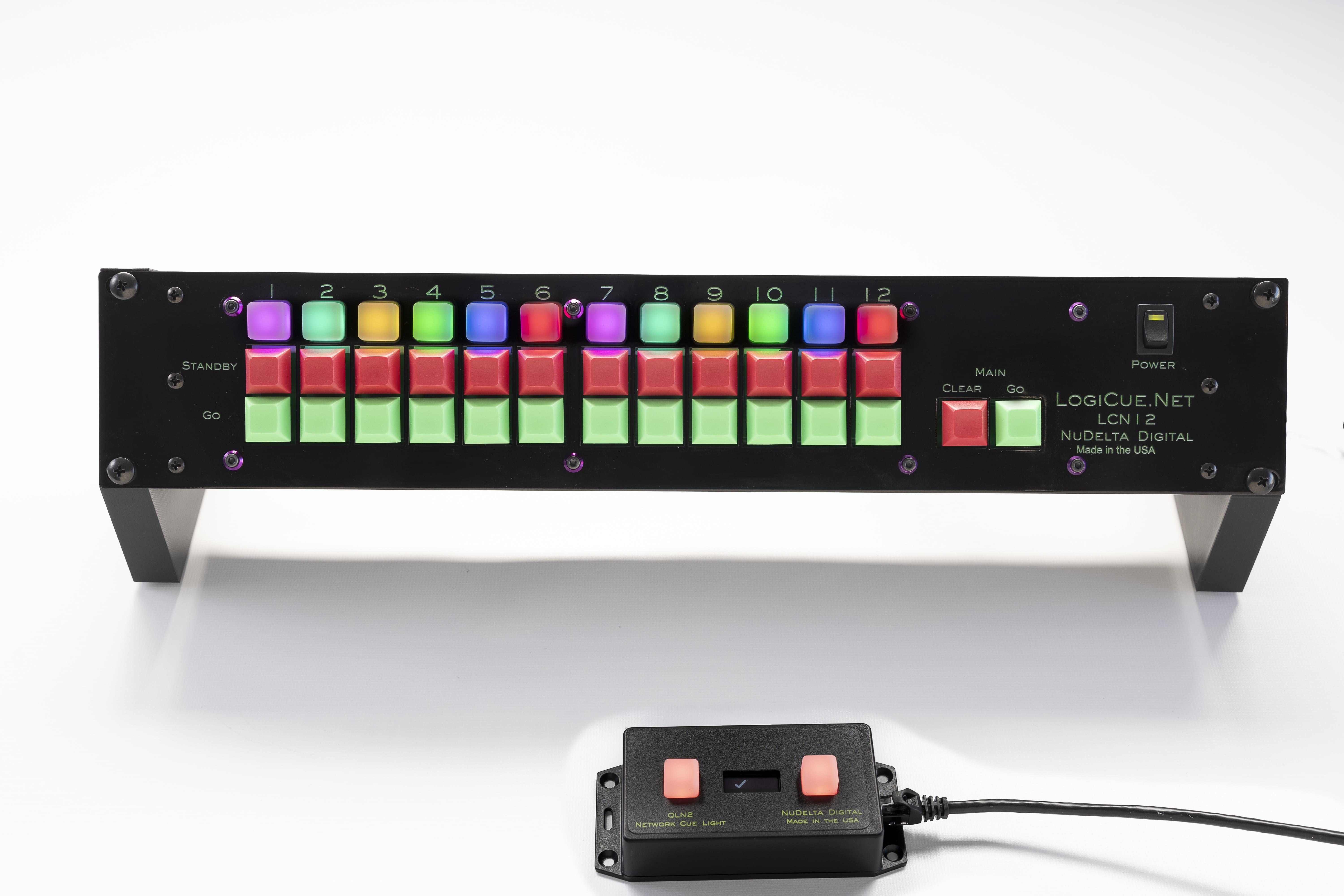
LC12N With QLN2 Cue Light
Managed switches have many settings that, if not configured correctly, could cause your LogiCue NET System to not function properly. Here is a list of settings that should be looked at when configuring a managed switch for use with a LogiCue NET System.
CRITICAL SETTINGS (Check These First)1. IGMP Snooping ConfigurationSymptoms if misconfigured:Cue lights loses connection every 5-10 minutes (typically at exact intervals matching membership timeout)Works initially but stops receiving multicast trafficWorks fine on unmanaged switchesSettings to check:IGMP Snooping Admin Mode (Global): Should be Enabled
If disabled, equipment may not connect at allIGMP Snooping per VLAN: Should be Enabled on the VLAN your equipment uses
CRITICAL FIX: Unknown Multicast Forwarding or Multicast Router Interface Mode:
Should be Disabled (allow unknown multicast forwarding) OR set to Forward Unknown MulticastThis is the most common cause of periodic timeouts (every 5-10 minutes)May be called:"Exclude Mrouter Interface Mode" → Set to Disabled"Block Unknown Multicast" → Set to Disabled"Drop Unknown Multicast" → Set to Disabled or Forward"Unknown Multicast Behavior" → Set to Flood or ForwardWhen enabled, the switch drops multicast streams that don't have active IGMP membershipsExtending the membership timeout does NOT fix this - you must allow unknown multicast forwardingMulticast VLAN: Configure the VLAN as a multicast VLAN if your switch supports this designation
This may automatically configure proper multicast forwarding behaviorIGMP Membership Interval/Timeout: Default is often 260-600 seconds
This setting alone will NOT prevent disconnects if unknown multicast is blockedOnly matters if equipment can be configured to send IGMP Join messagesMulticast Router Port: May need to designate an uplink port as a static multicast router port
2. Port Administrative StatusSymptom if misconfigured: Port doesn't work at all, no link lightSetting to check:Admin Mode or Port Status: Must be Enabled or UpCheck all ports where equipment is connected
3. VLAN MembershipSymptom if misconfigured: Equipment cannot communicate with other devicesSettings to check:All equipment ports must be in the same VLAN (typically VLAN 1 or default VLAN)Port VLAN mode should be:Untagged for cue lights and controllerTagged/Trunk only for switch-to-switch connectionsVerify ports are not excluded from the VLAN
COMMON ISSUES4. Storm Control (Broadcast/Multicast Rate Limiting)Symptom if misconfigured: Intermittent connectivity, especially with discovery protocolsSettings to check:Broadcast Storm Control: Should be Disabled or set to high threshold
If enabled with low threshold, can block DHCP, ARP, and device discoveryMulticast Storm Control: Should be Disabled
If enabled, can rate-limit or block multicast streamsUnknown Unicast Storm Control: Should be Disabled
Typical thresholds if Storm Control must be enabled:Set to 10-20% of bandwidth or >5000 packets per secondCheck per-port storm control settings, not just global
5. Spanning Tree Protocol (STP)Symptom if misconfigured: 30-50 second delay before port becomes active or cue lights do not connect at all. If possible, turn off STP globally. If it is necessary for other equipment on the switch, leave it on globally and turn it off at each port.Settings to check:STP Mode on Ports: Should be disabled for the ports that have cue lights or a controller.If enabled, port goes through listening/learning states (causes delay)PortFast or Edge Port Mode: Should be Enabled on ports
Bypasses STP delays for end-device portsDo NOT enable on switch-to-switch connectionsBPDU Guard: If enabled, ensure end devices don't send spanning tree packets
6. Port Speed and DuplexSymptom if misconfigured: Intermittent connectivity, slow performance, packet lossSettings to check:Auto-Negotiation: Should be Enabled on switch
If disabled on one side, may cause mismatchSpeed/Duplex: If auto-negotiation fails:
Some Gigabit switch ports may need to be configured to advertise 10/100Check that port is not restricted to "1000 Mbps only"Never mix auto-negotiation on one side with forced settings on the other
ADDITIONAL CHECKS7. Link Aggregation (LACP)Setting to check:LACP Mode: Should be Disabled on access ports (ports connecting to controller and cue lights)Only enable on switch-to-switch trunks if intentionally creating a LAG/port channel
8. MAC Address Aging TimeSymptom if misconfigured: Periodic connectivity loss (very rare)Setting to check:MAC Address Aging Interval: Default is typically 300-3600 secondsIf set too low (< 300 seconds), can cause MAC table to flush active devices
9. Energy Efficient Ethernet (EEE) / Green EthernetSymptom if misconfigured: Periodic signal loss at cue lights, usually at regular intervalsSetting to check:EEE/Green Ethernet: Should be Disabled on ports with real-time equipmentIf enabled, ports enter low-power mode during "idle" periodsMay cause brief link interruptions
10. Multicast Filtering / IGMP FilteringSettings to check:IGMP Filter Profiles: Should not be applied to portsMaximum Multicast Groups per Port: Ensure limit is not too restrictiveMulticast VLAN Registration (MVR): Should be disabled unless specifically configured
QUICK DIAGNOSTIC STEPSWhen Equipment Won't Connect:Check Port Admin Status - is port enabled?Check VLAN Membership - are all devices in same VLAN?Check Speed/Duplex - any negotiation errors?Temporarily disable IGMP Snooping - does equipment work?When Equipment Connects Then Disconnects After ~10 Minutes:PRIMARY FIX: Set Unknown Multicast Forwarding to Allow/Forward (disable blocking/exclusion)Designate VLAN as a Multicast VLAN if that option existsDisable Exclude Mrouter Interface Mode or similar blocking settingCheck Multicast Storm Control - should be disabledAs last resort, enable IGMP membership reports in equipment if possibleWhen Equipment Has Intermittent Issues:Check Storm Control settings - disable or increase thresholdsCheck STP - enable PortFast/Edge Port on access portsCheck EEE - disable on critical portsReview switch logs for port errors or security events
TROUBLESHOOTING TIPMost managed switches default to treating multicast intelligently via IGMP Snooping. The LogiCue NET System only uses the join/leave messages when cue lights join the multicast group (when the system first boots up). You must configure the switch to allow "unknown multicast" forwarding - otherwise, the switch will drop your multicast traffic after the membership timeout expires (typically 5-10 minutes).The root cause is: IGMP Snooping enabled + Unknown Multicast blocked = Periodic timeout disconnectsThe solution is NOT to extend the timeout - the solution is to disable the blocking of unknown multicast traffic.
NOTES:Menu names and exact terminology vary by manufacturer (Cisco, HP, Netgear, Dell, Ubiquiti, Netgear, etc.)Consult your specific switch documentation for exact menu pathsAlways save configuration changes to startup/running config
If disabled, equipment may not connect at allIGMP Snooping per VLAN: Should be Enabled on the VLAN your equipment uses
CRITICAL FIX: Unknown Multicast Forwarding or Multicast Router Interface Mode:
Should be Disabled (allow unknown multicast forwarding) OR set to Forward Unknown MulticastThis is the most common cause of periodic timeouts (every 5-10 minutes)May be called:"Exclude Mrouter Interface Mode" → Set to Disabled"Block Unknown Multicast" → Set to Disabled"Drop Unknown Multicast" → Set to Disabled or Forward"Unknown Multicast Behavior" → Set to Flood or ForwardWhen enabled, the switch drops multicast streams that don't have active IGMP membershipsExtending the membership timeout does NOT fix this - you must allow unknown multicast forwardingMulticast VLAN: Configure the VLAN as a multicast VLAN if your switch supports this designation
This may automatically configure proper multicast forwarding behaviorIGMP Membership Interval/Timeout: Default is often 260-600 seconds
This setting alone will NOT prevent disconnects if unknown multicast is blockedOnly matters if equipment can be configured to send IGMP Join messagesMulticast Router Port: May need to designate an uplink port as a static multicast router port
2. Port Administrative StatusSymptom if misconfigured: Port doesn't work at all, no link lightSetting to check:Admin Mode or Port Status: Must be Enabled or UpCheck all ports where equipment is connected
3. VLAN MembershipSymptom if misconfigured: Equipment cannot communicate with other devicesSettings to check:All equipment ports must be in the same VLAN (typically VLAN 1 or default VLAN)Port VLAN mode should be:Untagged for cue lights and controllerTagged/Trunk only for switch-to-switch connectionsVerify ports are not excluded from the VLAN
COMMON ISSUES4. Storm Control (Broadcast/Multicast Rate Limiting)Symptom if misconfigured: Intermittent connectivity, especially with discovery protocolsSettings to check:Broadcast Storm Control: Should be Disabled or set to high threshold
If enabled with low threshold, can block DHCP, ARP, and device discoveryMulticast Storm Control: Should be Disabled
If enabled, can rate-limit or block multicast streamsUnknown Unicast Storm Control: Should be Disabled
Typical thresholds if Storm Control must be enabled:Set to 10-20% of bandwidth or >5000 packets per secondCheck per-port storm control settings, not just global
5. Spanning Tree Protocol (STP)Symptom if misconfigured: 30-50 second delay before port becomes active or cue lights do not connect at all. If possible, turn off STP globally. If it is necessary for other equipment on the switch, leave it on globally and turn it off at each port.Settings to check:STP Mode on Ports: Should be disabled for the ports that have cue lights or a controller.If enabled, port goes through listening/learning states (causes delay)PortFast or Edge Port Mode: Should be Enabled on ports
Bypasses STP delays for end-device portsDo NOT enable on switch-to-switch connectionsBPDU Guard: If enabled, ensure end devices don't send spanning tree packets
6. Port Speed and DuplexSymptom if misconfigured: Intermittent connectivity, slow performance, packet lossSettings to check:Auto-Negotiation: Should be Enabled on switch
If disabled on one side, may cause mismatchSpeed/Duplex: If auto-negotiation fails:
Some Gigabit switch ports may need to be configured to advertise 10/100Check that port is not restricted to "1000 Mbps only"Never mix auto-negotiation on one side with forced settings on the other
ADDITIONAL CHECKS7. Link Aggregation (LACP)Setting to check:LACP Mode: Should be Disabled on access ports (ports connecting to controller and cue lights)Only enable on switch-to-switch trunks if intentionally creating a LAG/port channel
8. MAC Address Aging TimeSymptom if misconfigured: Periodic connectivity loss (very rare)Setting to check:MAC Address Aging Interval: Default is typically 300-3600 secondsIf set too low (< 300 seconds), can cause MAC table to flush active devices
9. Energy Efficient Ethernet (EEE) / Green EthernetSymptom if misconfigured: Periodic signal loss at cue lights, usually at regular intervalsSetting to check:EEE/Green Ethernet: Should be Disabled on ports with real-time equipmentIf enabled, ports enter low-power mode during "idle" periodsMay cause brief link interruptions
10. Multicast Filtering / IGMP FilteringSettings to check:IGMP Filter Profiles: Should not be applied to portsMaximum Multicast Groups per Port: Ensure limit is not too restrictiveMulticast VLAN Registration (MVR): Should be disabled unless specifically configured
QUICK DIAGNOSTIC STEPSWhen Equipment Won't Connect:Check Port Admin Status - is port enabled?Check VLAN Membership - are all devices in same VLAN?Check Speed/Duplex - any negotiation errors?Temporarily disable IGMP Snooping - does equipment work?When Equipment Connects Then Disconnects After ~10 Minutes:PRIMARY FIX: Set Unknown Multicast Forwarding to Allow/Forward (disable blocking/exclusion)Designate VLAN as a Multicast VLAN if that option existsDisable Exclude Mrouter Interface Mode or similar blocking settingCheck Multicast Storm Control - should be disabledAs last resort, enable IGMP membership reports in equipment if possibleWhen Equipment Has Intermittent Issues:Check Storm Control settings - disable or increase thresholdsCheck STP - enable PortFast/Edge Port on access portsCheck EEE - disable on critical portsReview switch logs for port errors or security events
TROUBLESHOOTING TIPMost managed switches default to treating multicast intelligently via IGMP Snooping. The LogiCue NET System only uses the join/leave messages when cue lights join the multicast group (when the system first boots up). You must configure the switch to allow "unknown multicast" forwarding - otherwise, the switch will drop your multicast traffic after the membership timeout expires (typically 5-10 minutes).The root cause is: IGMP Snooping enabled + Unknown Multicast blocked = Periodic timeout disconnectsThe solution is NOT to extend the timeout - the solution is to disable the blocking of unknown multicast traffic.
NOTES:Menu names and exact terminology vary by manufacturer (Cisco, HP, Netgear, Dell, Ubiquiti, Netgear, etc.)Consult your specific switch documentation for exact menu pathsAlways save configuration changes to startup/running config